





The Chevy infotainment system is known for being cutting-edge, with crisp new touchscreens, and easy customization options. As an experienced Chevy dealer, we’ve put together a quick guide full of easy tips for personalizing your new system. Read on to learn how to create your profile, save your favorite audio, and download the apps you love.
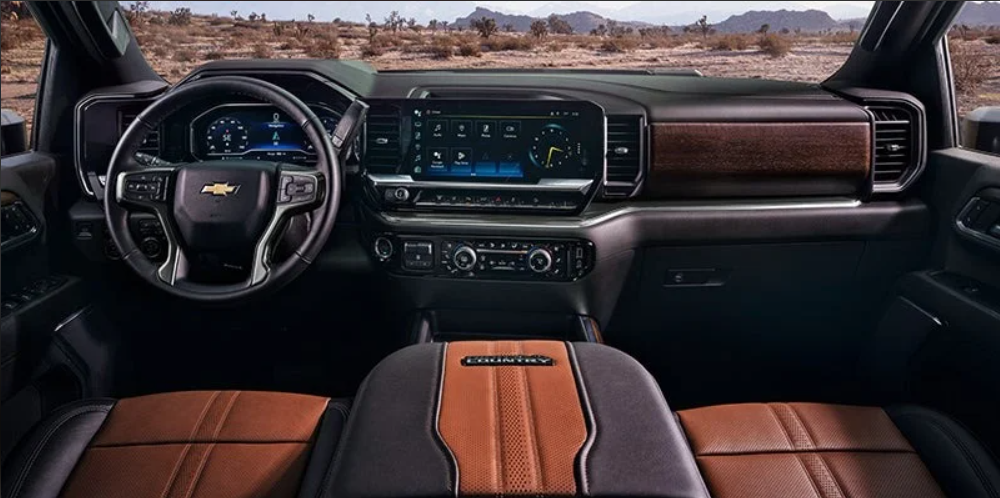
Your Chevy Dealer’s Guide for a Personalized Chevy Infotainment System Experience
1. Create a Profile
Creating your personal profile is a great way to save your preferred settings. The infotainment profile you create will be saved to your key fob. In fact, if you drive another GM vehicle with the same infotainment system, you’ll be able to load your profile on that vehicle as well. It’s important to note that when you go to create your profile, you want your key fob to be the only one in the vehicle so that your profile is assigned to the correct key fob.
To create a profile, you need to begin on the home screen, select the User button, and then select the link to create a profile. You’ll need to read through the terms, accept them, and then enter the same email address and password you use on your Owner Center account. If you haven’t created an Owner Center account, you can use a new email address and password. Then, all you need to do is choose your profile image for your account, select the Next link, and you’re ready to go.
2. Personalize the Home Screen
Many of today’s Chevy’s allow you to customize the home screen. You’ll be able to arrange your home screen icons in a way that makes sense to you, save a list of your favorite radio stations, and add your favorite apps.
Anytime you want to change the home screen, you’ll want to start by pressing the Home button. Then, put the screen into edit mode by selecting the icon you want to move and holding it. Drag the icon to where you want it to be without releasing your hold until it’s in position. Once you lift your finger, the icon will stay put in its new position until you choose to edit the placement again.
3. Download Your Apps
Find the Apps icon on your home screen and select it. You’ll then see a list of apps you can tap on to install them. Once you do this, the icon for the app will appear on your home screen, and tapping on it will open the app for you.
These quick tips will help you personalize your infotainment system and get the most out of your new vehicle. Visit Commonwealth Chevrolet in Lawrence, MA now to see our awesome selection of vehicles with cutting-edge technology features.
Connect with us


- 2024 Chevrolet Blazer
- 2024 Chevrolet Camaro
- 2024 Chevrolet Corvette Stingray
- 2024 Chevrolet Silverado 1500
- 2024 Chevrolet Silverado EV
- 2024 Chevrolet Trailblazer
- 2024 Chevy Malibu
- 2026 Chevrolet Equinox
- Certified Chevrolet Service in Lawrence, MA
- Chevrolet Dealer
- Commonwealth Chevrolet Service
- EV
- Infotainment System
- Lawrence Chevrolet Dealer
- Lawrence Chevrolet Service
- Lawrence Used Cars
- Oil Change
- Safety Features
- SUV
- Truck
- Uncategorized